Calibration workflow
Use Auto Calibrate to measure input latency, then check the judgments in Training Mode. Use Training Timing Adjust only when fine-tuning is needed.
What each setting does
| Setting | Purpose |
|---|---|
| Input Latency | The physical delay introduced by your input device, driver, and signal path. Auto Calibrate sets this value, which is shared by AI Transcriber and Training Mode. |
| Training Timing Adjust | Additional compensation used only by Training Mode. Use it if judgments still consistently lean in one direction after Auto Calibrate. |
Find the settings
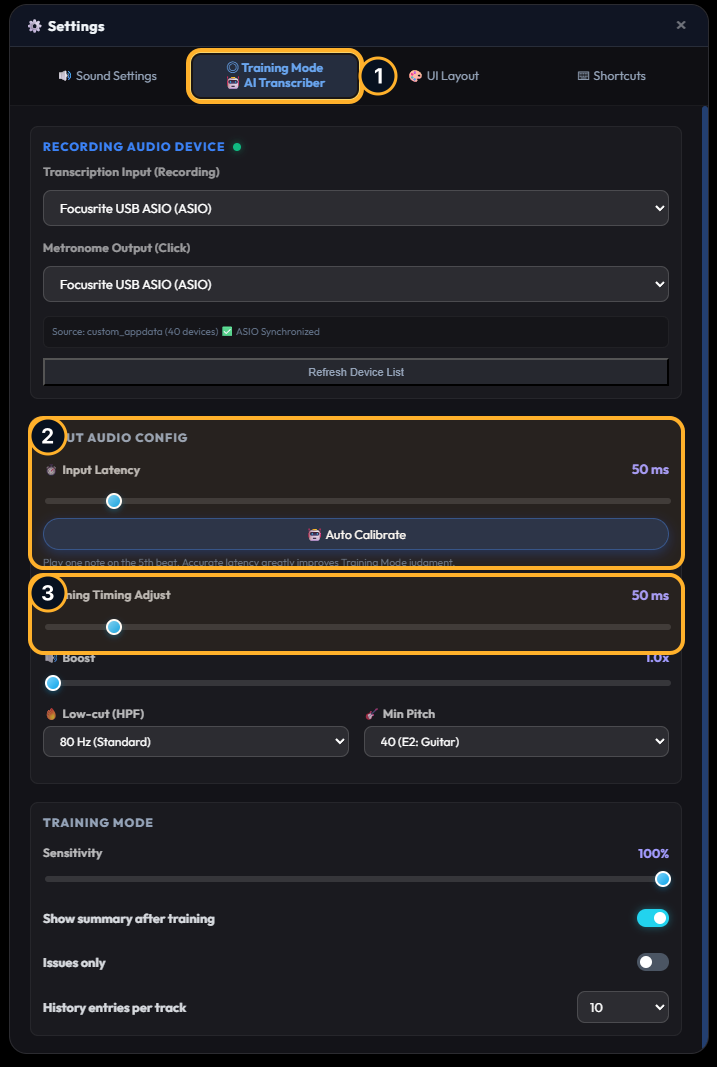
- 1Training Mode tab
Open Settings and select the Training Mode tab.
- 2Input Latency and Auto Calibrate
Automatically measure delay from the input device, driver, and signal path.
- 3Training Timing Adjust
Fine-tune this only if judgments still lean toward Early or Late after Auto Calibrate.
Before you begin
- Configure the input device you intend to use
- Use your normal signal path and playing volume
- Work in a quiet environment so that only the guitar is detected
Steps
- 01
Start Auto Calibrate
Open the Training Mode tab in Settings, then run Auto Calibrate under INPUT AUDIO CONFIG.
- 02
Play with the guide
Listen to the count and play the 12th fret of the first string on beat five. When measurement finishes, Input Latency is set automatically.
- 03
Check in Training Mode
Start Training Mode, play several notes, and check whether judgments consistently lean toward Early or Late.
- 04
Fine-tune only if needed
If Late appears frequently, increase Training Timing Adjust. If Early appears frequently, decrease it. Start with changes of 5–10 ms.
- 05
Restart playback and check again
After changing the setting, stop and restart playback, then play the same passage again to confirm the result.
When to recalibrate
Run Auto Calibrate again after changing the input device, ASIO®/Standard mode, driver buffer size, or signal path.

ASIO-compatible audio support
ASIO is a registered trademark of Steinberg Media Technologies GmbH.