About this page
Adjust generated string and fret positions, tuning, and performance markings to match your preferred fingering and playing style.
Before you begin
- Load the song you want to edit
- TAB Editor is a full-version feature
- Changes are saved to the song-specific
SongName_tab.jsonfile rather than to the original MIDI
Basic workflow
- 01
Open TAB Editor
Select a song and open TAB Editor. You can also enter a bar number to jump to a specific location.
- 02
Adjust strings and frets
Use the mouse wheel over a note to change its fret number. Drag a note vertically to move it to another string.
- 03
Select notes
Click a note to select it. Depending on the marking, select one or two notes and then use the controls at the bottom of the editor.
- 04
Save and update the score
Select Save & Reload to save the changes and apply them to the score.
Reading the screen
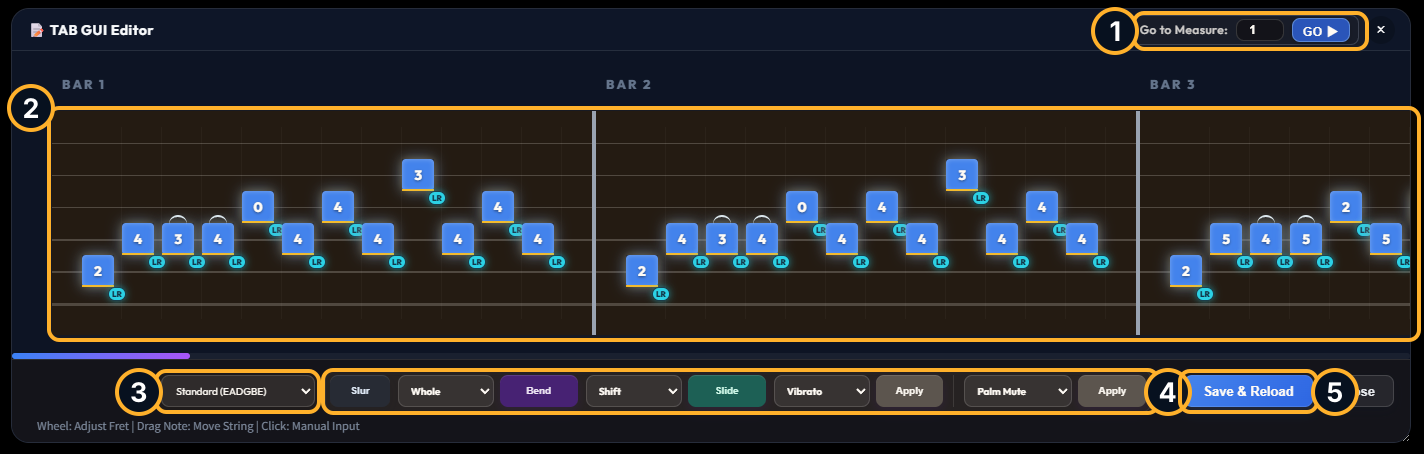
- 1Go to Measure
Enter a measure number and press Go to move directly to that measure.
- 2Note editing area
Use the mouse wheel over a note to change its fret, drag it vertically to move strings, and click it to select it for a technique.
- 3Tuning
Select the tuning for the song. String and fret positions are recalculated to preserve pitch.
- 4Technique controls
Select one or two notes, then configure Slur, Bend, Slide, Vibrato, Palm Mute, and other techniques.
- 5Save & Reload
Save your edits and reload the score so the changes appear in the score display.
Tuning
Choose Standard, Half-step Down, Whole-step Down, or Drop D. String and fret positions are recalculated where possible to preserve each note pitch.
Slur, bend, and slide
| Marking | How to apply it |
|---|---|
| Slur | Select the two notes to connect and press Slur. Apply it to the same pair again to remove it. |
| Bend | Select the target note, choose Half, Whole, or 1.5 as the bend amount, and press Bend. |
| Slide | Select the target note, choose Shift, In Below, In Above, Out Down, or Out Up, and press Slide. |
Other performance markings
| Selection | Available markings |
|---|---|
| Apply to selected notes | Vibrato, Ghost, Accent, Marcato, and Staccato |
| Apply across a range | Palm Mute and Let Ring. Select the start and end notes to apply the marking to the notes between them. |
Applying the same active marking again removes it.
Undo and redo
Press Ctrl+Z to undo or Ctrl+Y to redo. Review the surrounding notes before saving.
Important
TAB Editor changes affect score notation. They do not modify the original MIDI file or rewrite its recorded pitches and performance data.